Autotask + AnswerConnect.
Every call answered by a real person. Every ticket created automatically.




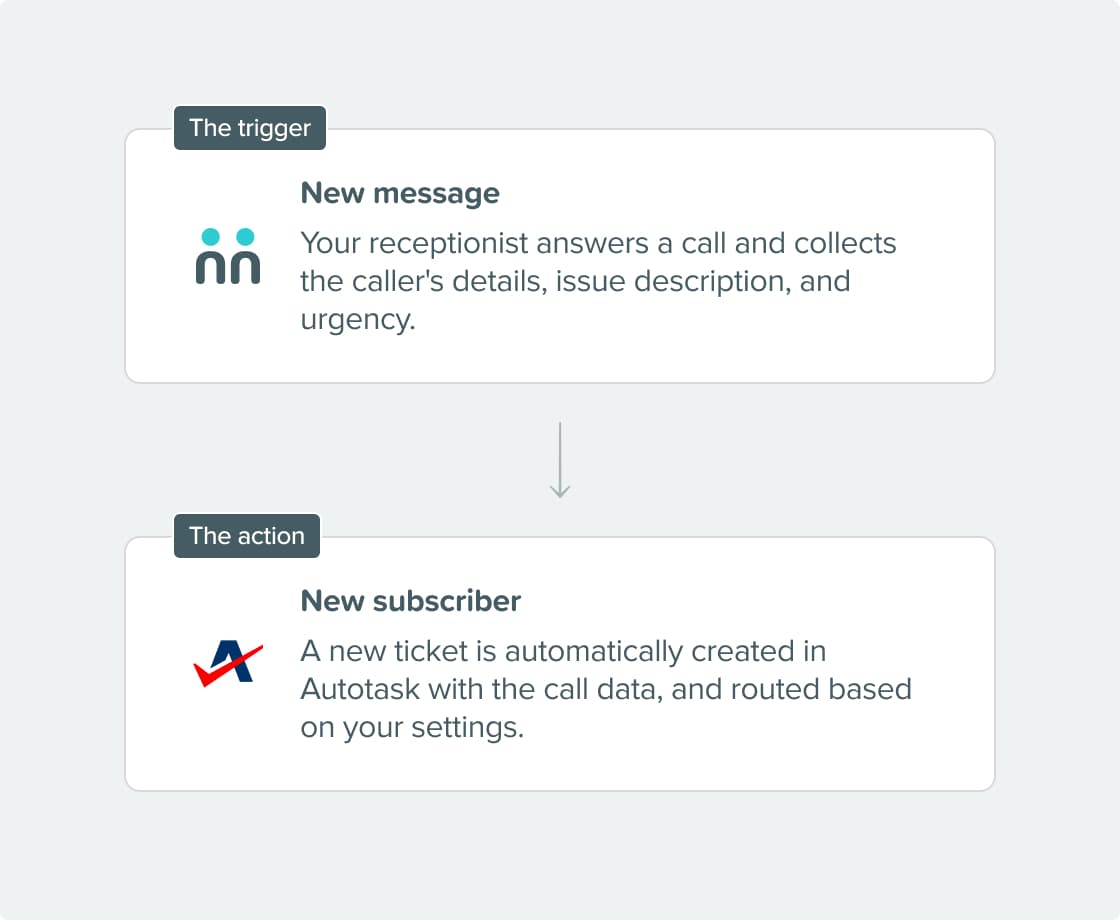

What can the integration do?
- Create a ticket: Every completed call becomes a new ticket in Autotask. Tickets get a title, priority, and are sent to the right queue or department.
- Map detailed ticket fields: The integration covers many ticket fields, like status, priority, type, source, issue type, SLA, resource, category, contract details, change management fields, and more. Every ticket in your system is complete and ready to use.
- Route to the right team: Tickets are automatically routed to the right department, queue, or resource using the information your receptionist gathers. This way, nothing ends up in the wrong place.
- Advanced actions: You can use API requests to link call data to your custom Autotask workflows for more complex use cases.
Why integrate?
Get connected in three simple steps.

Get your API credentials.
In your Autotask account, locate your API username and password. You'll need these to connect Autotask to AnswerConnect.

Configure integration.
In the AnswerConnect app, select Autotask as your action app. Choose "Create Ticket" as your action event. Map your script fields to the matching ticket fields in Autotask.

Test and publish.
Run a test to make sure everything works, then hit publish. After that, every completed call will automatically create a ticket in Autotask.

Already a customer?
Activate the integration now from your app.
Your questions answered.
Can't find the answer to your question? Call us now: 800-700-8888 or email us at sales@answerconnect.com

Start Today.
Find the right plan for your business.

Learning, Sharing & Giving Back.
These are the values of AnswerConnect. Here is a book we think you might like.
Hooked.
Nir Eyal
Habits don’t happen by chance. Consistent triggers, simple actions, and rewarding outcomes are what turn occasional use into repeat behavior.