

Keeping your team profiles updated, whether you add, edit or remove members, helps maintain accuracy and security across your account. New team members are also added as verified contacts, which helps our receptionists recognise returning callers faster and reduces repetitive questions.
Add a New Staff Member
1. Log into your AnswerConnect app > Navigate to Settings > Your Team > Click the “+” (Add Team Member) button.
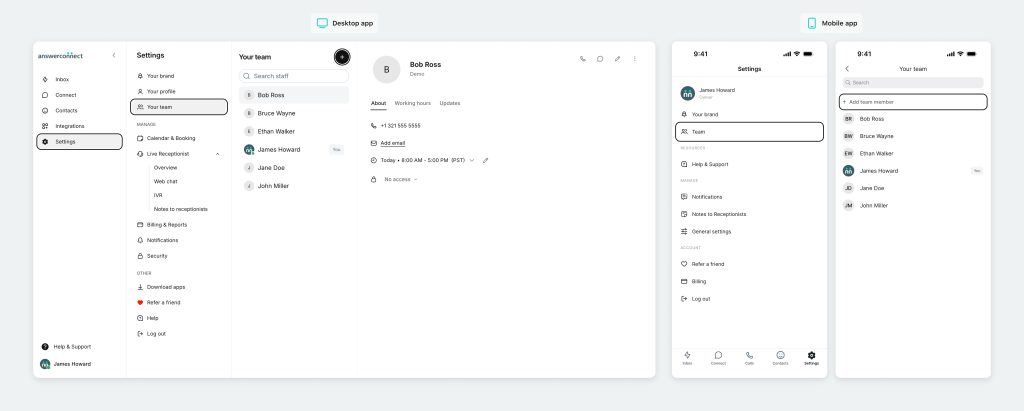
2. Enter the staff member’s name and email address.
3. Assign a role: Admin or Standard Member (Admins have additional access, such as managing the team and viewing billing).
4. Assign a number from your account number or live receptionist number.
5. Click Add > The staff member will need to accept the invitation via email to access the app
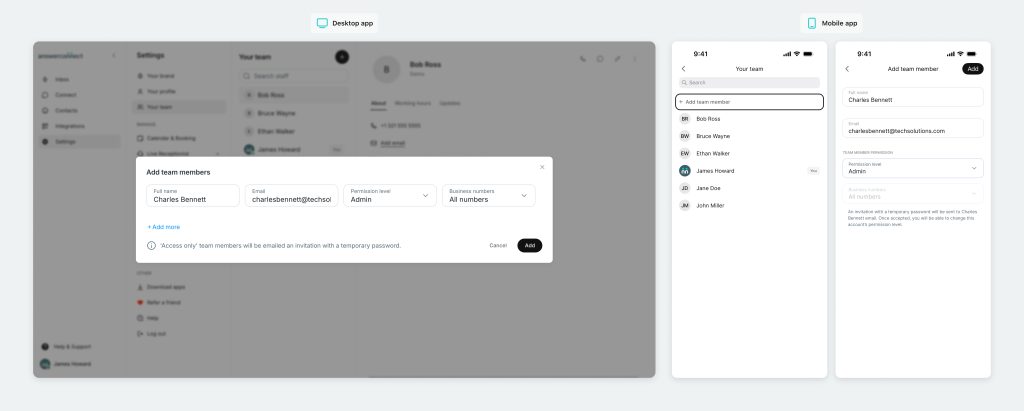
Note: Adding someone here updates the app directory. If you need them included in a script or delivery method, contact the client services team.
Edit a Staff Member
1. Go to Settings > Your Team > Select the staff member’s name
2. Click the pencil icon on the right side to edit details ( full name, phone number, role, pronouns) > Hit save.

Remove a Staff Member
1. Go to Settings > Your Team > Select the staff member you want to remove.
2. Click the three dots on the right side and select Delete Profile

Update Working Hours for a Specific Staff Member
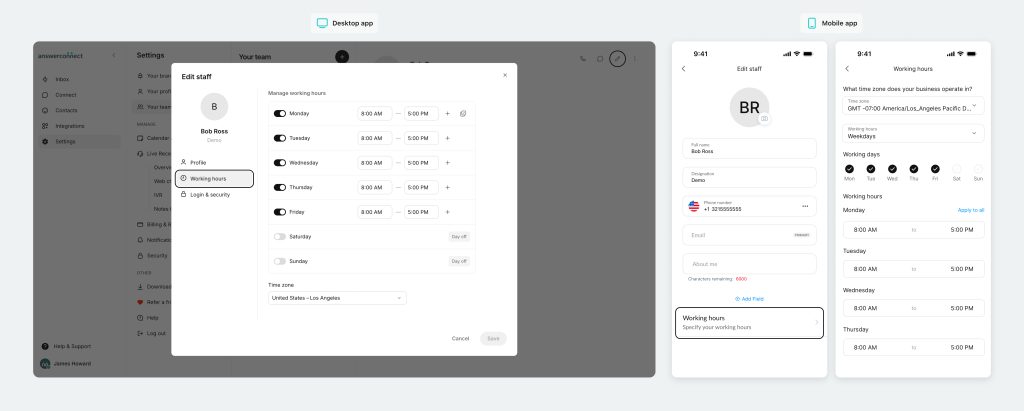
Go to Settings > Your Team > Select the staff member > Click the pencil icon > Update working hours and save changes.
Need help?
If you’d like guidance adding or updating team members, or want to make sure your directory and verified contacts are set up correctly, our Client Services Team is here to help:
- US clients: 800-531-5828 | clientservices@answerconnect.com
- Canada clients: 800-858-1625 | help@answerconnect.com