

Connecting with HubSpot allows you to keep all the caller information in one place. Automatically push caller information to the platform as a new contact, lead, or company. Learn more about the integration here.
Activating the integration
Activating your HubSpot integration can be done in a few simple steps:
- Log in to the AnswerConnect app
- Select Integrations in the left navigation bar
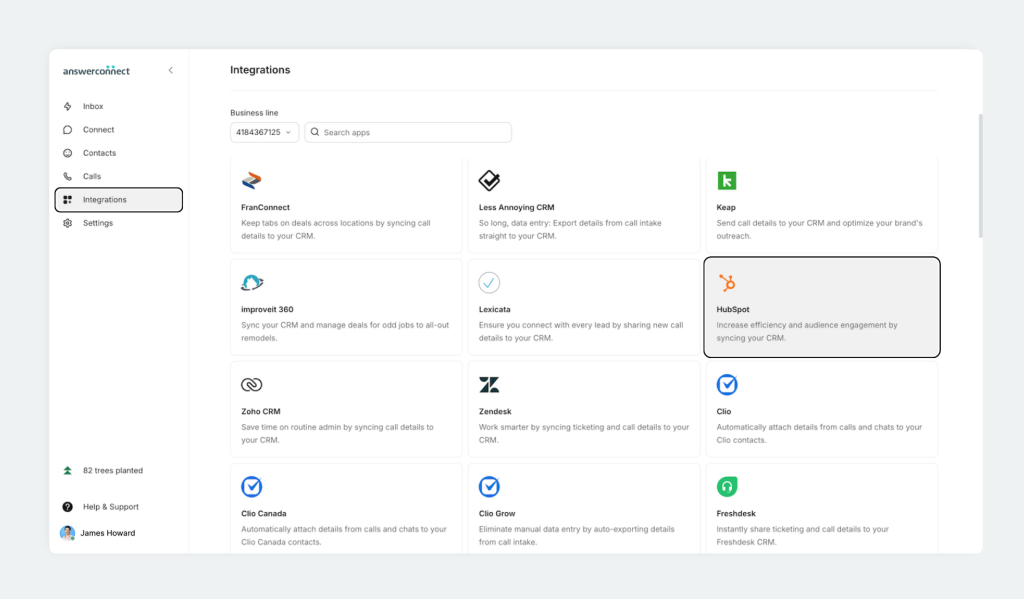
- Find the HubSpot integration card, and click it.

- Press the Connect button on the right-hand side of the HubSpot details window.
- First, you will select a Trigger. In this instance, you will choose Call Intake.

- You’ll be prompted to enter your HubSpot login information to continue.
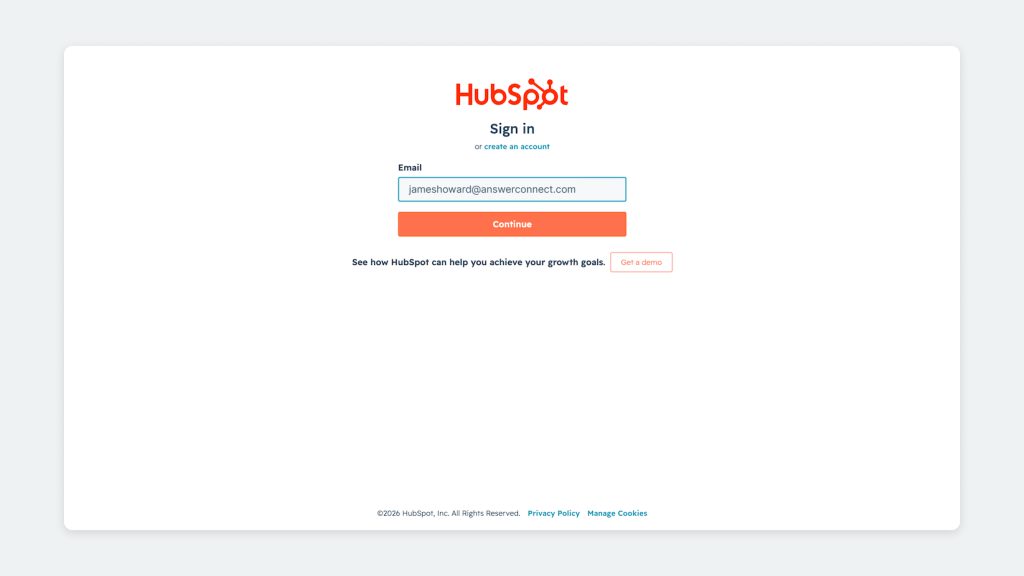
- If you have multiple accounts connected to your HubSpot login, choose your preferred account.

- Now that you’ve connected your HubSpot account, you’ll be returned to complete the integration Setup. We recommend renaming the connection, then clicking Continue.

- In the Action tab, click Contact and Continue.

- In the Setup tab, you can add the contact fields that will be transferred from AnswerConnect to your HubSpot account. After mapping, click the Continue button at the bottom of the screen to proceed.

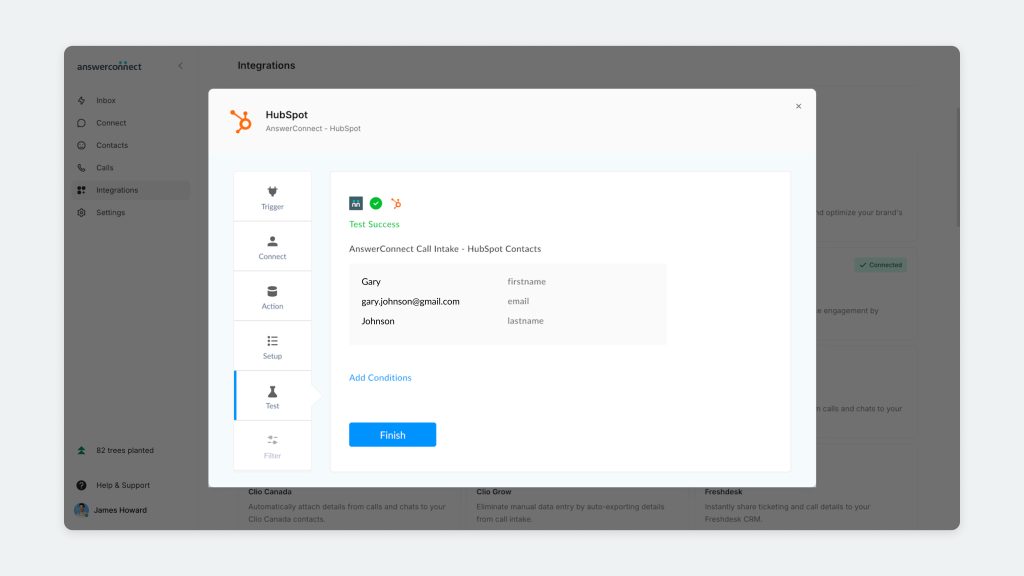
- In the Test tab, you have the opportunity to test the integration, or you can skip the test.

- Click Finish to complete the integration. The integration is now activated.
Alternative option: Activate the integration through Zapier
Another way you can integrate your answering account to HubSpot is through Zapier. Automate workflows between the two platforms based on the triggers and actions available in Zapier.
Visit the AnswerConnect and HubSpot integration page on Zapier to set up your integration.
Get in touch
If you have any questions or need assistance setting up your HubSpot integration, get in touch with our client services team – we’re happy to help.
US clients: 800-531-5828 | clientservices@answerconnect.com
Canada clients: 800-858-1625 | help@answerconnect.com